Tampilkan postingan dengan label Tutorial Visual Basic. Tampilkan semua postingan

ListView Dalam VisualBasic

Your Ad Here

ListView dalam Visual Basic biasanya digunakan untuk menampilkan data, baik dari database maupun bukan, ke dalam tabel dalam bentuk list atau grid. Dengan ListView, data yang ada dapat diurutkan, ditambahkan maupun dihapus dengan mudah dari list.


Menambahkan ListView

Untuk menambahkan ListViewke dalam form (project), cari tool yang bernama listview pada toolbox. Jika komponen tersebut belum ada di toolbox, maka Anda harus menambahkan / mengaktifkan komponen Microsoft Common Controls. Klik kanan pada toolbox dan pilih sub menu Components… Lihat gambar berikut ini :


ListView Dalam VisualBasic

Mengatur Header ListView

Untuk mengatur ListViewListView, perhatikan contoh berikut ini :


.. .. ..
Dim ch As ColumnHeader
Set ch = ListView1.ColumnHeaders.Add(, , "No.", 600)
Set ch = ListView1.ColumnHeaders.Add(, , "Kode", 900, vbCenter)
Set ch = ListView1.ColumnHeaders.Add(, , "Nama Barang", 2300,
vbLeftJustify)
Set ch = ListView1.ColumnHeaders.Add(, , "Byk", 900, vbCenter)
Set ch = ListView1.ColumnHeaders.Add(, , "Harga Satuan", 1500,
vbRightJustify)
Set ch = ListView1.ColumnHeaders.Add(, , "Jumlah", 1580,
vbRightJustify)
ListView1.GridLines = True
.. .. ..


Program di atas akan mengatur header ListView menjadi 7 kolom, yaitu kolom No, Kode, Nama Barang, Byk, Harga Satuan dan Jumlah. kamujuga dapat mengatur perataan dan lebar masing-masing kolom. Tampilan ListView yang dihasilkan dari program di atas kurang lebih sebagai berikut :


ListView Dalam VisualBasic

Menambahkan Record (Item) ke dalam ListView

Untuk menambahkan Record (Item) ke dalam ListView , perhatikan contoh sebagai berikut :


.. .. ..
Dim lv As ListItem
Set lv = lsttampil.ListItems.Add(, , 1)
lv.SubItems(1) = "B001"
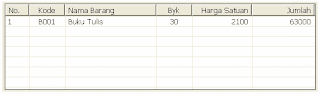
lv.SubItems(2) = "Buku Tulis"
lv.SubItems(3) = "30"
lv.SubItems(4) = "2100"
lv.SubItems(5) = "63000"
.. .. ..

Program di atas akan menambahkan sebuah record (item) baru ke dalam ListView. Tampilan ListViewkurang lebih menjadi sebagai berikut :

ListView Dalam VisualBasic

Ok Segitu dulu penjelasannya, semoga bermanfaat...
Jangan Lupa Comment ya

Read More - ListView Dalam VisualBasic

Creating Mailing list Application

Your Ad Here

In this time I will show, how to make a simple mailing list application with VB. The application allows the entry of information (names and addresses) to build a mailing list. An added feature is a timer that keeps track of the time spent entering addresses. After each entry, rather than write the information to a database (as we would normally do), the input information is simply displayed in a Visual Basic message box. We present this example to illustrate the steps in building an application. If you feel comfortable building this application and understanding the corresponding code, you probably possess the Visual Basic skills needed to proceed with this course.


1. Start a new project. Place two frames on the form (one for entry of address information and one for the timing function). In the first frame, place five labels, five text boxes, and two command buttons. In the second frame, place a label control, a timer control and three command buttons. Remember you need to ‘draw’ controls into frames. Resize and position controls so your form resembles this:


2. Set properties for the form and controls (these are just suggestions – make any changes you might like):

Form1:
Name frmMailingList
BorderStyle 1-Fixed Single
Caption Mailing List Application


Frame1:
Name fraMail
Caption Address Information
Enabled False

Label1:
Caption Name

Label2:
Caption Address

Label3:
Caption City

Label4:
Caption State

Label5:
Caption Zip

Text1:
Name txtInput
Index 0 (a control array)
TabIndex 1
Text [blank it out]

Text2:
Name txtInput
Index 1
TabIndex 2
Text [blank it out]

Text3:
Name txtInput
Index 2
TabIndex 3
Text [blank it out]

Text4:
Name txtInput
Index 3
TabIndex 4
Text [blank it out]


Text5:
Name txtInput
Index 4
TabIndex 5
Text [blank it out]

Command1:
Name cmdAccept
Caption &Accept
TabIndex 6

Command2:
Name cmdClear
Caption &Clear

Frame1:
Name fraTime
Caption Elapsed Time

Label6:
Name lblElapsedTime
Alignment 2-Center
Backcolor White
BorderStyle 1-Fixed Single
Caption 00:00:00
FontBold True
FontSize 14

Timer1:
Name timSeconds
Enabled False
Interval 1000

Command3:
Name cmdStart
Caption &Start

Command4:
Name cmdPause
Caption &Pause
Enabled False


Command5:
Name cmdExit
Caption E&xit

When done, the form application should appear something like this:


3. Put these lines in the General Declarations area of the code window:

Option Explicit
Dim ElapsedTime As Variant
Dim LastNow As Variant


4. Put these lines in the Form_Load event procedure:

Private Sub Form_Load()
ElapsedTime = 0
End Sub


5. Put this code in the txtInput_KeyPress event procedure:

Private Sub txtInput_KeyPress(Index As Integer, KeyAscii As Integer)
'Check for return key
If KeyAscii = vbKeyReturn Then
If Index = 4 Then
cmdAccept.SetFocus
Else
txtInput(Index + 1).SetFocus
End If
End If
'In Zip text box, make sure only numbers or backspace pressed
If Index = 4 Then
If (KeyAscii >= Asc("0") And KeyAscii <= Asc("9")) Or KeyAscii = vbKeyBack Then Exit Sub Else KeyAscii = 0 End If End If End Sub

Note the line beginning with ‘If (KeyAscii >= Asc(“0”) And ...’ is so long that the word processor wraps the line around at the margin. Type this as one long line, not two separate lines or review the use of the Visual Basic line continuation character (_). Be aware this happens quite often in these notes when actual code is being presented.
.


6. Put this code in the cmdAccept_Click event procedure:

Private Sub cmdAccept_Click()
Dim S As String, I As Integer
'Accept button clicked - form label and output in message box
'Make sure each text box has entry
For I = 0 To 4
If txtInput(I).Text = "" Then
MsgBox "Each box must have an entry!", vbInformation + vbOKOnly, "Error"
Exit Sub
End If
Next I
S = txtInput(0).Text + vbCrLf + txtInput(1).Text + vbCrLf
S = S + txtInput(2).Text + ", " + txtInput(3).Text + " " + txtInput(4).Text
MsgBox S, vbOKOnly, "Mailing Label"
Call cmdClear_Click
End Sub


7. Put this code in the cmdClear_Click event procedure:

Private Sub cmdClear_Click()
Dim I As Integer
'Clear all text boxes
For I = 0 To 4
txtInput(I).Text = ""
Next I
txtInput(0).SetFocus
End Sub


8. Put this code in the cmdStart_Click event procedure:

Private Sub cmdStart_Click()
'Start button clicked
'Disable start and exit buttons
'Enabled pause button
cmdStart.Enabled = False
cmdExit.Enabled = False
cmdPause.Enabled = True
'Establish start time and start timer control
LastNow = Now
timSeconds.Enabled = True
'Enable mailing list frame
fraMail.Enabled = True
txtInput(0).SetFocus
End Sub


9. Put this code in the cmdPause_Click event procedure:

Private Sub cmdPause_Click()
'Pause button clicked
'Disable pause button
'Enabled start and exit buttons
cmdPause.Enabled = False
cmdStart.Enabled = True
cmdExit.Enabled = True
'Stop timer
timSeconds.Enabled = False
'Disable editing frame
fraMail.Enabled = False
End Sub


10. Put this code in the cmdExit_Click event procedure:

Private Sub cmdExit_Click()
'Exit button clicked
End
End Sub


11. Put this code in the timSeconds_Timer event procedure:

Private Sub timSeconds_Timer()
'Increase elapsed time and display
ElapsedTime = ElapsedTime + Now - LastNow
lblElapsedTime.Caption = Format(ElapsedTime, "hh:mm:ss")
LastNow = Now
End Sub


12. Save the application. Run the application. Make sure it functions as designed. Note that you cannot enter mailing list information unless the timer is running.


Read More - Creating Mailing list Application

Membuat Program Deskripsi Pada VB

Your Ad Here

Setelah sebelumnya membuat program enkripsi pada VB sekarang kita akan membuat program untuk mendeskripnya, biar afdolll... hehehe

OK tanpa basa basi, kita langsung bereksperimen...

Langkah Pertama

  • Silakan buka kembali proyek yang sebelumnya telah kita buat, ituloh yang "Membuat program Enkripsi pada VB".
    Klik disini untuk membaca "Membuat Program Enkripsi pada VB"
  • .
  • Lalu tambahkan beberapa komponen, diantaranya :
  • 1 buah Label

  • 1 buah textbox

  • 1 buah CommandButton

  • maka otomatis masing2 komponen tersebut akan bernama label4, text4, dan command4.


  • Kalo sudah ganti parameter properties dari masing2 komponen menjadi seperti dibawah ini.:
  • text4, hapus captionnya, dan berikan nilai true pada seting multiline.
  • label4, ganti caption agar menjadi Plaintext Awal

  • command4, ganti caption agar menjadi Dekripsi>

  • Langkah Kedua

  • Setelah langkah diatas selesai, silakan masukan script dibawah ini pada tombol Dekripsi.
    Private Sub Command2_Click()
    strCipher = Text3.Text
    strKode = Text2.Text
    strPlainBaru = XORFunc(strKode, strCipher)
    Text4.Text = strPlainBaru
    End Sub


  • OK akhirnya selesai, sekarang kamu punya program Enkripsi dan Deskripsi...
    Moga bermanfaat...

    Read More - Membuat Program Deskripsi Pada VB

    Membuat Program Enkripsi Pada VB

    Your Ad Here

    Kali ini kita akan membuat sebuah program enkripsi sederhana pada VB6, dengan memanfaatkan fungsi XOR. Langsung saja, Untuk membuat program enkripsi pada VB silakan ikuti penjelasan dibawah ini.

    Langkah Pertama


  • Buatlah sebuah proyek baru dengan VB6, dan pilih proyek jenis standardEXE.


    Langkah Kedua


  • Pada form proyek, tambahkan beberapa komponen diantaranya :


  • 3 buah textbox


  • 3 buah label


  • dan 1 buah CommandButton


  • Sekarang edit properties dari masing2 komponen, dengan parameter seperti dibawah ini:


  • ubah properties text1, hapus caption dan pada setingan multiline berikan nilai true


  • ubah properties text2, hapus caption dan pada setingan multiline berikan nilai true


  • ubah properties text3, hapus caption dan pada setingan multiline berikan nilai true


  • ubah properties label1, ganti captionnya agar menjadi PlainText.


  • ubah properties label2, ganti captionnya agar menjadi Key.


  • ubah properties label3, ganti captionnya agar menjadi Ciphertext.


  • ubah properties dari command1, ganti caption dengan Enkripsi.


  • Sehingga akan menjadi seperti gambar dibawah ini.

    Membuat Program Enkripsi Pada VB


    Langkah Ketiga

    Nah sekarang masuk dalam tahap memasukan source code proyek kita. OK lanjut...


  • Masukan script seperti dibawah ini pada form proyek kita.

    Public Function XORFunc(strKodeIn As String, strDataIn As String) As String

    Dim lon1 As Long
    Dim intXOR1 As Integer
    Dim intXOR2 As Integer
    Dim strDataOut As String

    For lonI = 1 To Len(strDataIn)
    intXOR1 = Asc(Mid$(strDataIn, lonI, 1))
    intXOR2 = Asc(Mid$(strKodeIn, _
    ((lonI Mod Len(strKode)) + 1), 1))

    strDataOut = strDataOut + Chr(intXOR1 Xor intXOR2)
    Next lonI

    XORFunc = strDataOut

    End Function


  • Kemudian tambah kode script seperti dibawah ini tepat diatas dari kode diatas.

    Dim strPlain As String
    Dim strPlainBaru As String
    Dim strCipher As String
    Dim strKode As String


  • Sekarang masukan script dibawah ini pada tombol enkripsi,,,

    Private Sub Command1_Click()
    strPlain = text1.Text
    strKode = text2.Text
    strCipher = XORFunc(strKode, strPlain)
    text3.Text = strCipher
    End Sub


    Nah selesai, silakan kamu coba dengan menjalankannya...
    moga bemanfaat,,,

  • Read More - Membuat Program Enkripsi Pada VB

    Membuat Browser sederhana dengan VB6

    Your Ad Here

    Nah tutorial kali ini membahas tentang visual basic ato VB, gw mo ngasih tutorial buat pemula aja coz kalo yang udah mahir mah gak perlu lagi yang kek gini. hehehe

    Disini kita bakalan bikin web browser sederhana pake program VB, biarpun sederhana tapi buatan sendiri kan.,, OK tanpa panjang lebar lagi langsung aja kita mulai tutorialnya...

    langkah pertama

  • Kamu buka program VBnya, Terus pilih project standard exe.

  • Tekan tombol CTRL + T pada keyboard, pada kotak dialog yang muncul cari komponen Microsoft Internet Controls , dan beri ceklist. Kemudian klik OK.

  • Langkah Kedua

  • Buat 4 Command Button dan beri nama command button tersebut dengan.
  • cmdBack

  • cmdForward

  • cmdStop

  • cmdHome
  • .
  • Buat 1 label control dan beri nama dengan : lbCaption

  • 1 combobox control dan beri nama dengan : cboURL

  • masukan komponen webbrowser control pada form dengan cara double klik pada icon webbrowser control, dan beri nama dengan: wWeb
  • .
  • Atur posisi dari masing2 komponen sesuai keinginan kamu.

  • Langkah tiga


  • Masukan kode dibawah ini pada tombol cmdBack. Dengan cara double klik pada tombol tersebut.
    wweb.GoBack  

  • Masukan kode dibawah ini pada tombol cmdForward. Dengan cara double klik pada tombol tersebut.
    wWeb.GoForward

  • Masukan kode dibawah ini pada tombol cmdStop. Dengan cara double klik pada tombol tersebut.
    wWeb.Stop

  • Masukan kode dibawah ini pada tombol cmdHome. Dengan cara double klik pada tombol tersebut.
    wWeb.GoHome

  • Masukan kode dibawah ini pada Combo Box. Dengan cara double klik pada Combo Box tersebut.
    If KeyCode = vbKeyReturn Then
    wWeb.Navigate cboURL.Text
    End If

  • Langkah Keempat

  • mulai menjalankan program browser kita.


  • Maaf gw ggug bisa masukin gambar nya coz VB gw error, gara2 kmaren kena virus.
    Sekian,,, Semoga bermanfaat...

    Read More - Membuat Browser sederhana dengan VB6

    Pengenalan Visual Basic 6.0

    Your Ad Here

    Sebelum mempelajari Visual Basic 6.0 kamu mesti punya programnya dulu, kamu bisa beli CD Visual Basic 6.0 atau bisa juga download di internet. Dengan Visual Basic kamu bisa membuat program berbasis desktop application dengan mudah, dari program yang sederhana sampai yang gila2an. Hehehe…

    Pada tutorial kali ini gw mau menjelaskan tentang Pengenalan Visual Basic 6.0, disini gw anggap kamu sudah punya program Visual Basic 6.0.

    Ok langsung aja, Langkah pertama silakan buka program Visual Basic 6.0. Maka akan mucul jendela seperti dibawah ini.


    Ada 13 jenis project yang bisa dibuat dengan visual basic 6.0, yaitu :

  • Standart Exe
    • Project standart exe adalaha project yang paling umum digunakan pada Visual Basic. Project jenis ini dapat menghasilkan file dengan extensi exe yang dapat dieksekusi secara langsung, juga dillengkapi dengan form.

  • ActiveX Exe
    • ActiveX Exe merupakan project yang digunakan untuk membuat komponen ActiveX yang bisa dieksekusi secara langsung.

  • ActiveX Dll
    • Project ActiveX Dll adalah project yang digunakan untuk membuat komponen ActiveX yang berupa DLL (Dinamic Link Library).

  • ActiveX Control
    • ActiveX Control adalah project yang digunakan untuk membuat komponen kontrol ActiveX, yaitu komponen yang dapat disipkan pada sebuah program aplikasi.

  • VB Aplication Wizard
    • Project VB Aplication Wizard merupakan project yang digunakan untuk membuat sebuah kerangka suatu program / software / aplikasi.

  • VB Wizard Manager
    • Project VB Wizard Manager biasanya digunakan untuk membangun sebuah wizard, yaitu kumpulan informasi dari pengguna yang akan digunakan untuk membangun sebuah aplikasi.

  • Data Project
    • Project jenis ini sangat identik dengan project Standard Exe, namun disini control yang digunakan untuk akses database langsung ditambahkan secara otomatis.

  • IIS Aplication
    • Sebuah project yang digunakan untuk membangun sebuah aplikasi pada IIS (Internet Information Server)

  • Addin
    • Dengan project Addin kamu dapat membuat Add-Ins baru.Add-Ins adalah sebuah perintah yang dapat ditambahkan pada menu Visual Basic.

  • ActiveX Document Dll
    • Project jenis ini dapat membangun sebuah Document Active dengan ekstensi file berupa DLL.

  • ActiveX Document Exe
    • ActiveX Document Exe hanpir sama dengan ActiveX Document DLL, namun format file yang dihasilkan berupa ekstensi Exe.

  • DHTML Aplication
    • DHTML atau Dynamic Hypertext Markup Language Aplication merupakan project yang dapat mempermudah kita dalam membangun halaman DHTML.

  • VB Enterprise Edition Control
    • VB Enterprise Edition Control pada dasarnya sejenis dengan project Standard EXE, bedanya kalau VB Enterprise Edition Control semua tools VB Enterprise Edition akan di aktifkan.


    OK segitu dulu ya pengenalan Visual Basic dari gw, ntar gw lanjutin lagi ma Tutorial Visual Basic lainnya...

    Read More - Pengenalan Visual Basic 6.0